
Commands and menus
MetaEdit has exactly one command and three context-menu items, all leading to the same two flows: the property picker for a single note, and the bulk edit flow for many notes. This page lists each entry point with its exact label and the conditions under which it appears.
Command palette
Section titled “Command palette”| Command | ID | What it does |
|---|---|---|
| “MetaEdit: Run” | metaedit:metaEditRun |
Opens the property picker for the active markdown note |
The command is registered as “Run”, so the command palette displays it with the plugin-name prefix: “MetaEdit: Run”. Use the full id metaedit:metaEditRun when you bind a hotkey programmatically, build an Obsidian URI, or trigger it from another plugin:
app.commands.executeCommandById("metaedit:metaEditRun");Context menu items
Section titled “Context menu items”MetaEdit adds up to three items to Obsidian’s right-click menus, all with a pencil icon.
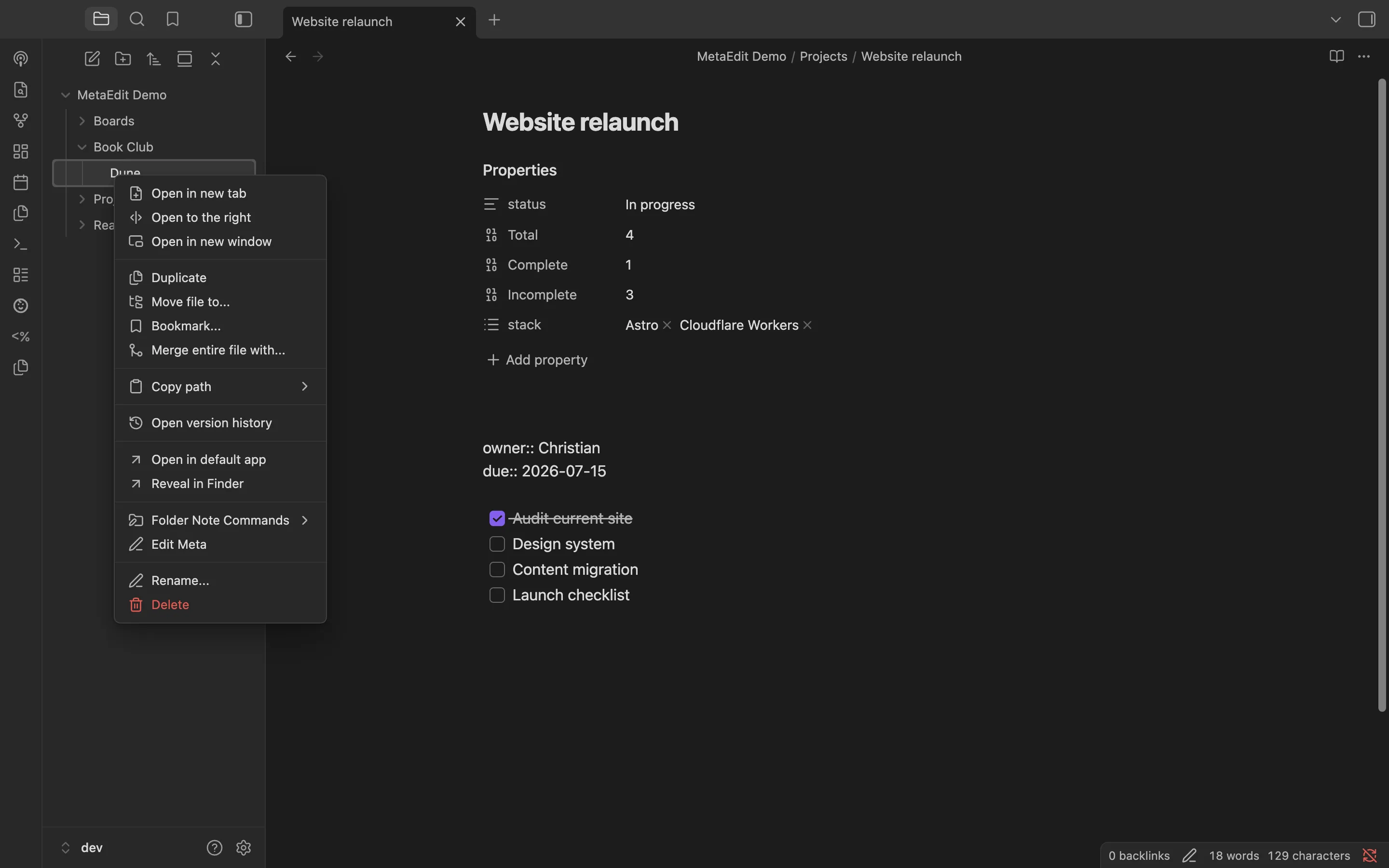
| Menu item | Where it appears | Visible when |
|---|---|---|
| “Edit Meta” | Right-click on a file in the file explorer, on an internal link in a note, or on a day in the Calendar plugin | The target is a single .md file |
| “Bulk edit metadata in this folder (and subfolders)” | Right-click on a folder in the file explorer | The folder contains at least one markdown file at any depth |
| “Bulk edit metadata in selected notes” | Right-click on a multi-selection in the file explorer | The selection contains at least one .md file, or a folder containing markdown at any depth |
“Edit Meta”
Section titled ““Edit Meta””Opens the property picker for the clicked file, which does not have to be the note you have open. It appears for exactly three menu sources: the file explorer, internal links, and the Calendar plugin’s day menu. Other menus (tab headers, editor selections) do not get the item, and it never appears for non-markdown files.
“Bulk edit metadata in this folder (and subfolders)”
Section titled ““Bulk edit metadata in this folder (and subfolders)””Collects every .md file in the folder, recursing into subfolders, and starts the bulk edit flow. The first prompt shows the scope as <folder name> (and subfolders). Folders with no markdown anywhere beneath them do not show the item.
“Bulk edit metadata in selected notes”
Section titled ““Bulk edit metadata in selected notes””Select multiple files or folders in the file explorer (Ctrl/Cmd-click or Shift-click), then right-click the selection. Selected folders are expanded recursively, non-markdown files are ignored, and duplicates are edited once. The scope label in the first prompt is the note’s name when exactly one note resolves, otherwise <N> selected items.
The property picker
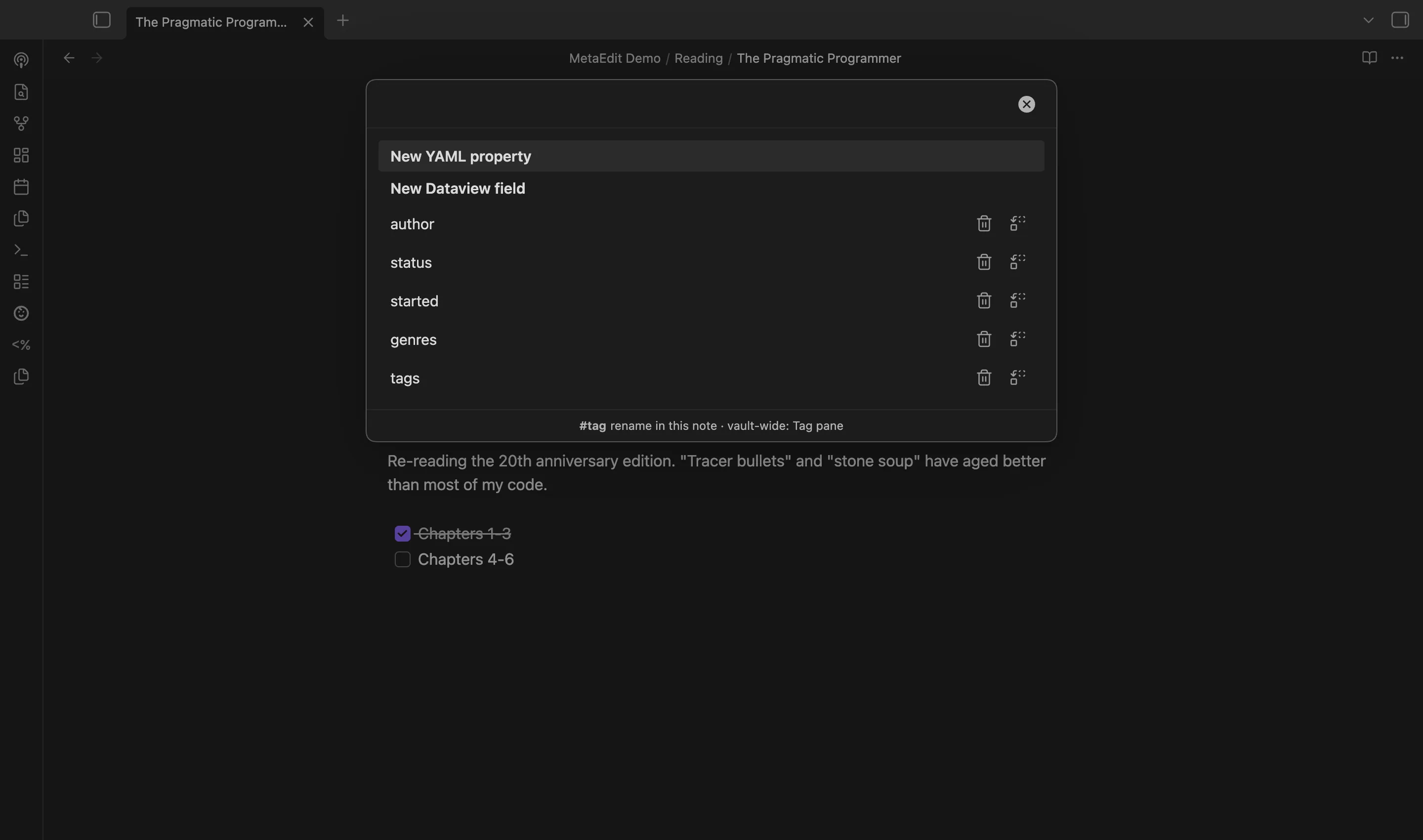
Section titled “The property picker”Both “MetaEdit: Run” and “Edit Meta” open the property picker, a fuzzy-search modal over everything editable in the note.
Row order
Section titled “Row order”- “New YAML property” - always first, shown bold. Opens the type-aware creation flow.
- “New Dataview field” - always second, shown bold. Prompts for a name and value, then appends a
key:: valueline to the note body. - The note’s properties, in parse order: body
#tags, then YAML frontmatter properties, then inline Dataview fields.
When the same body tag appears more than once, each occurrence gets its own row, disambiguated as #tag (line N, i/n) so you can pick the exact one to edit. See edit tags.
Rows that are hidden
Section titled “Rows that are hidden”- Properties filtered by the “Edit Meta menu” settings: exact-name matches from the hide list, and all body-tag rows when “Hide file tags” is on. Nothing is filtered while that feature’s master toggle is off, and filtering never deletes data.
- YAML values that are parent containers (an object, or a list containing objects or lists) are always hidden - they cannot be edited as a single value.
Row actions
Section titled “Row actions”Property rows that support structure editing show two flush-right icon buttons:
| Icon | Tooltip | What it does |
|---|---|---|
| Trash | “Delete property” | Deletes the property from the note and closes the picker |
| Replace | “Transform to YAML ⇄ Dataview” | Converts between a frontmatter property and an inline key:: value field |
The buttons are click or tap only - there is no keyboard shortcut for them. Body-tag rows and nested YAML rows show no action buttons. See delete and transform.
Footer and keyboard
Section titled “Footer and keyboard”The picker footer shows one permanent instruction: #tag - rename in this note · vault-wide: Tag pane. MetaEdit renames a tag occurrence in the current note only; vault-wide renames belong to Obsidian’s Tag pane.
Standard fuzzy-modal keys apply: type to filter, Up/Down to move, Enter to choose, Esc to close.
What MetaEdit deliberately does not add
Section titled “What MetaEdit deliberately does not add”- No ribbon icon. The command palette, a hotkey, or the right-click menu are the only triggers.
- No bulk edit command. Bulk edit is context-menu only - right-click a folder or a selection.
- No vault-wide tag rename. Tag edits touch one occurrence in one note; use Obsidian’s Tag pane for the whole vault.
Related pages
Section titled “Related pages”- Quick start - a first tour of the picker
- Settings reference - every toggle that shapes these menus
- Notices and error messages - what each popup means