
Build a reading tracker
Track your reading with a small set of typed frontmatter properties, two Auto Properties for the values you set constantly, and a Dataview table that turns a folder into a bookshelf. You set this up once; after that, logging a book takes a few keystrokes.
Prerequisites
Section titled “Prerequisites”- MetaEdit 1.9.0 or later. The plugin requires Obsidian 1.12.7+ and everything here works on desktop and mobile.
- The Dataview community plugin, for the bookshelf query in the last step. Every other step works without it.
- A folder for book notes. This recipe uses
Library/.
Step 1: decide the schema
Section titled “Step 1: decide the schema”Each book note carries six properties:
| Property | Type | Example | Edited with |
|---|---|---|---|
author |
Text | Frank Herbert |
Native text widget |
status |
Text | Reading |
status Auto Property (Single) |
started |
Date | 2026-06-14 |
Native date picker |
genres |
List | Sci-fi, Classics |
genres Auto Property (Multi) |
rating |
Number | 8 |
Native number widget |
tags |
List | book |
Native tags widget |
Property types live in Obsidian’s vault-wide type registry, not in MetaEdit. Once rating is a Number anywhere in your vault, MetaEdit’s create modal adopts Number for every future rating you add. See Create properties for how type adoption works.
Step 2: define the two Auto Properties
Section titled “Step 2: define the two Auto Properties”status and genres are the values you will set over and over, so give each a fixed list of choices:
- Open Settings, then MetaEdit.
- Turn on the “Auto Properties” toggle (its settings description reads “Quick switch for values you know the value of.” - in practice: named choice lists for properties).
- Click the row’s extra button to expand the inline management UI.
- Click “Add auto property”. Name it
status, keep the type dropdown on “Single”, set the description toWhere this book is in your reading flow., then use “Add value” to addTo Read,Reading,Finished, andAbandoned. - Click “Add auto property” again. Name it
genres, switch the type dropdown to “Multi”, and add your genres as values.
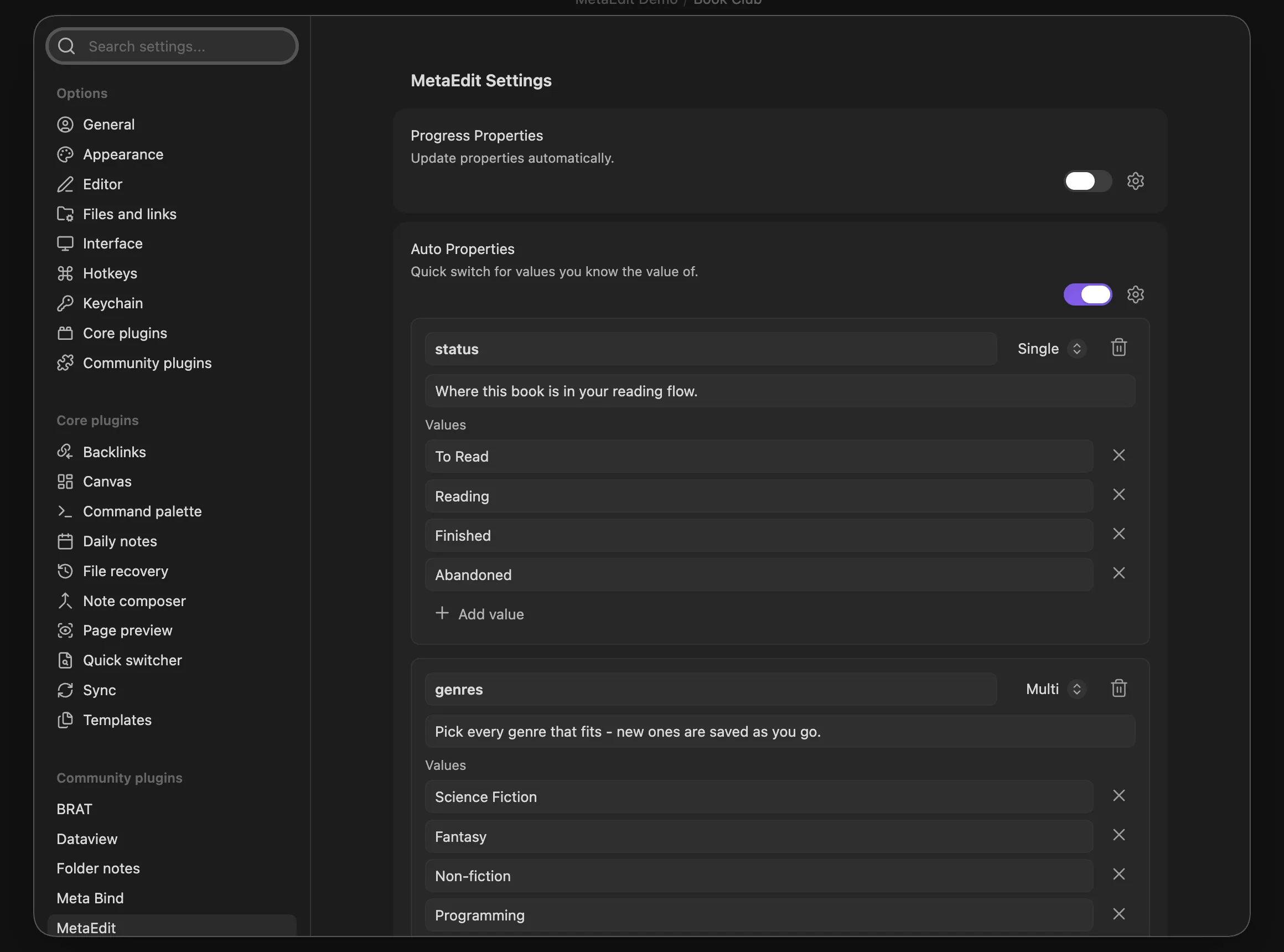
Every change saves immediately; there is no save button.
The full feature, including descriptions and the Single/Multi behavior, is covered in the Auto Properties guide.
Step 3: create a book note and add its properties
Section titled “Step 3: create a book note and add its properties”- Create
Library/Dune.mdand open it. - Run the “MetaEdit: Run” command from the command palette. MetaEdit has no ribbon icon, so assign a hotkey if you do this often.
- In the property picker, choose “New YAML property”.
- Type
ratingas the key and8as the value. If your vault already knowsratingas a Number, the value widget switches to a number input on its own; for a brand-new key the type starts as Text and MetaEdit offers a one-click hint when your value looks like a number or date. You can always switch types manually with ⌘/Ctrl+Y.

- Repeat for
author(Text) and, if you know it,started(pick the Date type). - Now add
status: type the key and press Enter (or Tab) - the modal replaces the value field with the note ‘“status” uses an Auto Property – press ⌘/Ctrl+↵ to choose its value.’ Commit, and thestatusvalue prompt opens with your four choices. Do the same forgenres.
The note’s frontmatter ends up looking like this:
---rating: 8author: Frank Herbertstarted: 2026-06-14status: Readinggenres: - Sci-fi - Classicstags: - book---Step 4: set the start date with the native date picker
Section titled “Step 4: set the start date with the native date picker”When you pick up a book, set started without touching the YAML:
- Run “MetaEdit: Run” in the book note.
- Pick
startedin the property picker. - The “Edit started” modal opens with Obsidian’s own date picker. Choose the date and click “Save”.
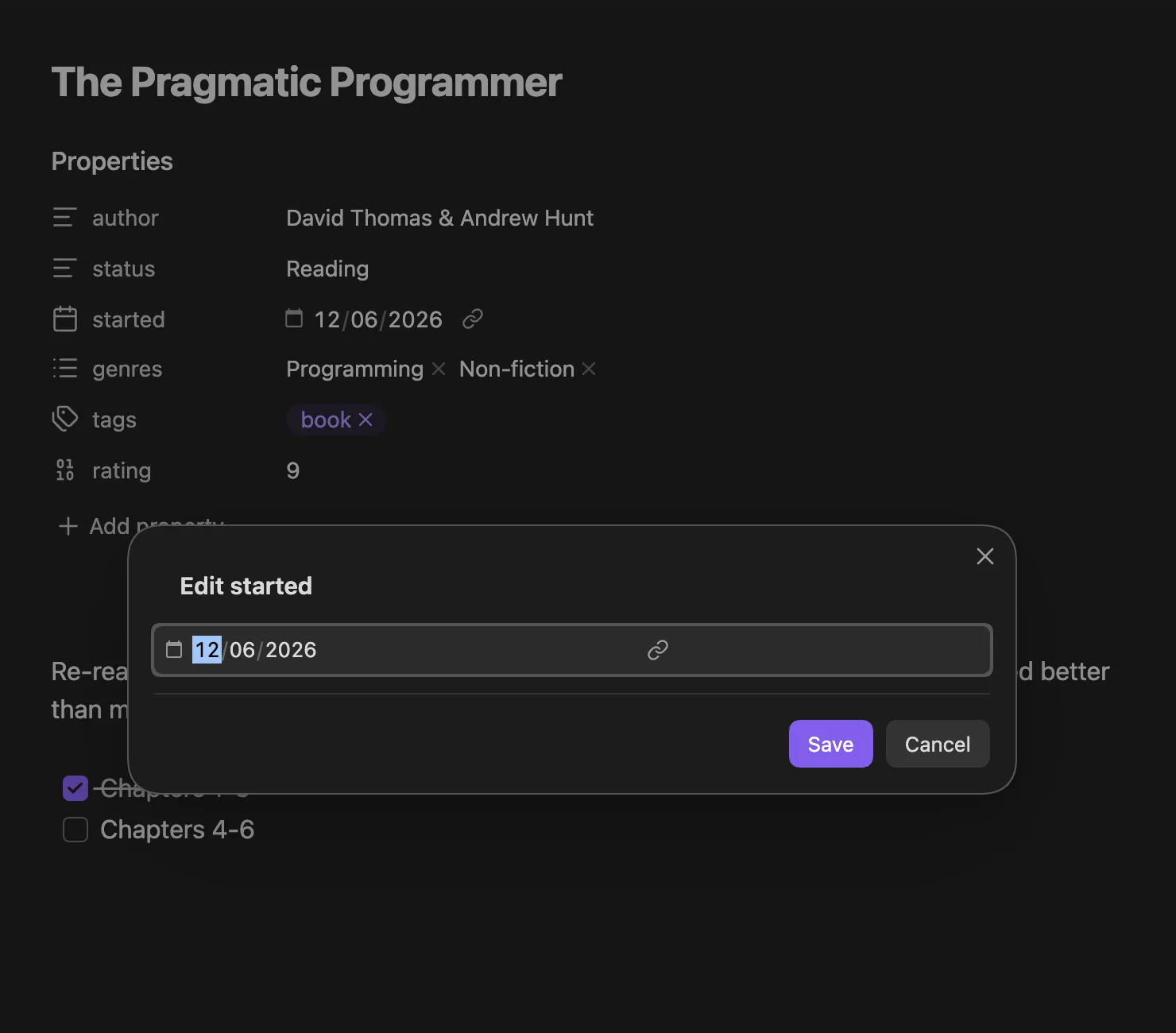
Because this is a natively edited YAML property, the value stays a real date - no quoting, no string coercion.
Step 5: update status and genres as you read
Section titled “Step 5: update status and genres as you read”Moving a book through your pipeline is the same two keystrokes every time: “MetaEdit: Run”, then pick status. The Single prompt lists your choices, filtered as you type.
The prompt also learns as you go. Type a value that is not in the list, say On Hold, and two extra rows appear: ‘Use “On Hold”’ applies it once, and ‘Save “On Hold” as a choice’ adds it to the status choice list permanently.
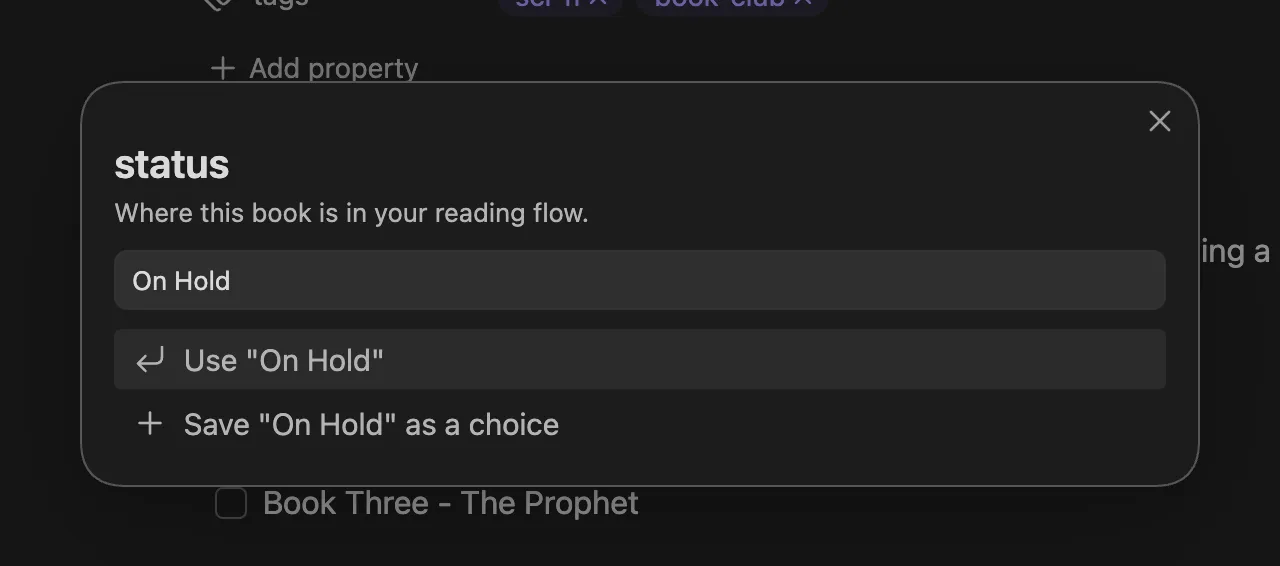
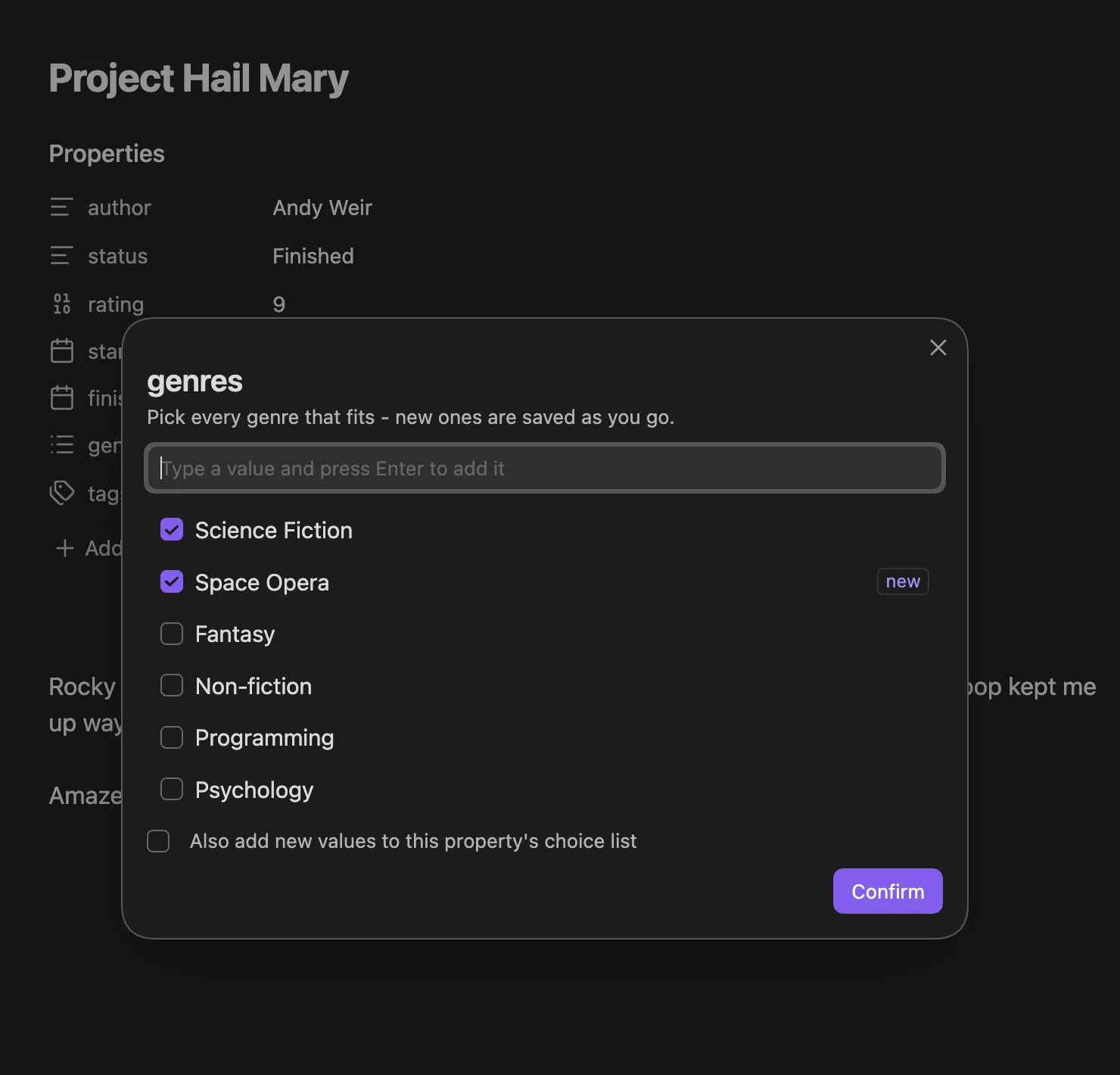
genres works the same way, but as a multi-select: current values come pre-checked, values not yet in your choice list carry a “new” badge, and typing a value and pressing Enter adds it checked. Tick “Also add new values to this property’s choice list” to keep new genres for next time, then click “Confirm”.
Step 6: the bookshelf query
Section titled “Step 6: the bookshelf query”With consistent, typed properties, the Dataview side is short. Put this in a Bookshelf.md note:
TABLE author, status, rating, started, genresFROM "Library"SORT status ASC, rating DESCOr group the shelf by status:
TABLE rows.file.link AS Book, rows.author AS Author, rows.rating AS RatingFROM "Library"GROUP BY statusBecause rating is a real Number and started a real Date, sorting and comparisons behave correctly - no string-sorted “10 before 9” surprises.
Going further
Section titled “Going further”- Prompt for
statusandgenresat note creation with a Templater template: Prompt for metadata in Templater templates. - Stamp
type: bookon the wholeLibrary/folder in one pass: Bulk metadata migrations and cleanups. - More on list-shaped values and Edit Mode: Lists and multi-values.