
Delete and transform properties
Every editable property row in the property picker carries two action icons: a trash icon that deletes the property, and a transform icon that converts it between YAML frontmatter and an inline Dataview key:: value field. This page explains exactly what each action writes, which rows offer them, and what the safety notices mean.
The row action icons
Section titled “The row action icons”Open the picker with “MetaEdit: Run” or the right-click “Edit Meta” menu item, then hover (or tap) a property row:
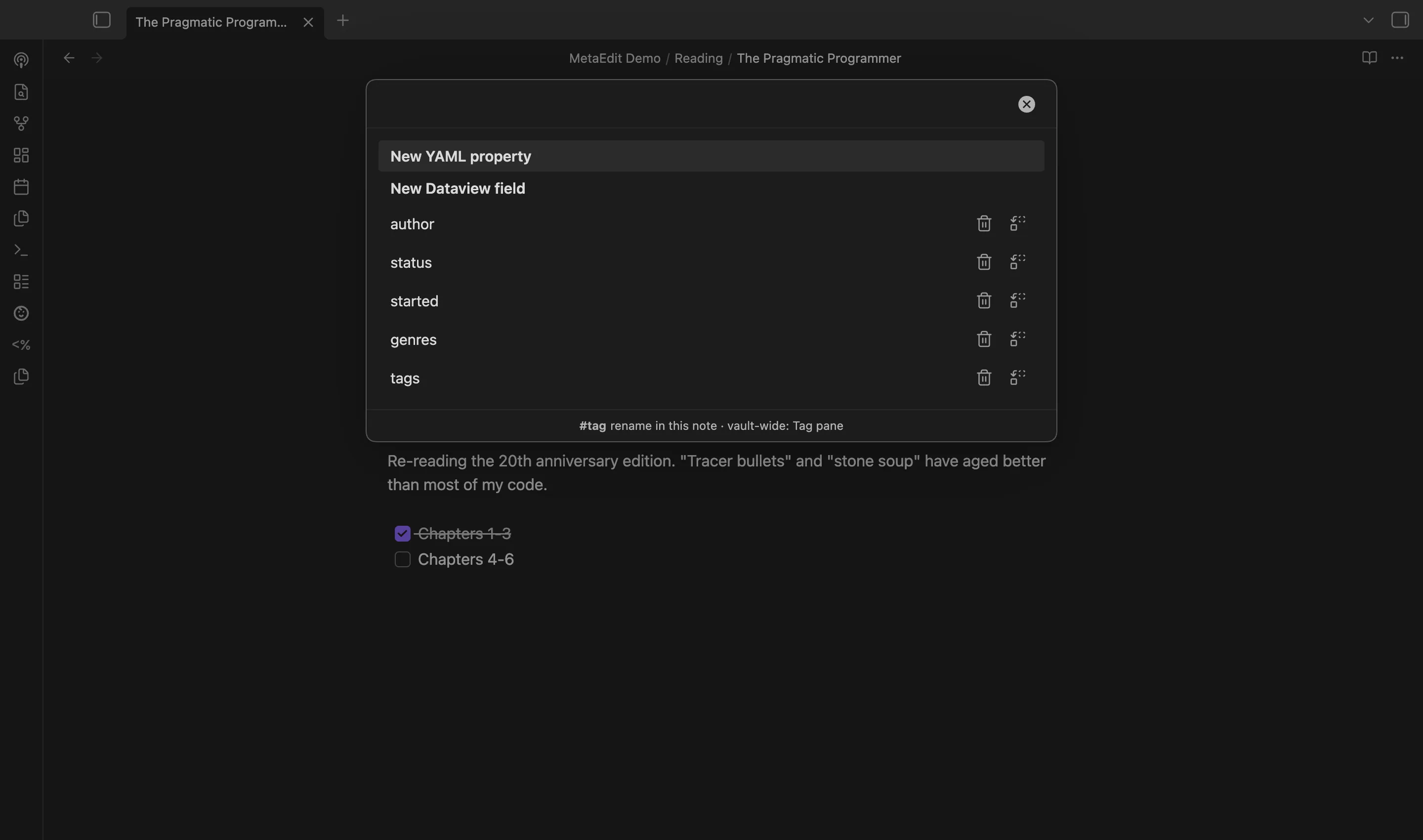
| Icon | Tooltip | What it does |
|---|---|---|
| Trash | “Delete property” | Removes the property from the note |
| Replace arrows | “Transform to YAML ⇄ Dataview” | Converts YAML frontmatter to an inline field, or an inline field to YAML frontmatter |
Both icons are click or tap only - there is no keyboard shortcut for them. Selecting the row itself (Enter or click on the row text) still opens the normal edit flow.
Not every row offers the icons:
| Row type | Icons shown |
|---|---|
| Top-level YAML property | Yes |
| Inline Dataview field | Yes |
Body #tag |
No - tags have no key: line to delete or transform; see edit tags |
Nested or dot-path YAML row (like author.name) |
No - a nested leaf cannot be safely removed as a unit yet |
Delete a property
Section titled “Delete a property”Click the trash icon (“Delete property”). What gets removed depends on where the property lives:
- A YAML property is removed whole, through Obsidian’s frontmatter primitive. A multi-line block value - a block list or a nested map - is deleted together with its key, never leaving orphaned
- itemlines behind. - An inline Dataview field is removed by deleting the first line in the note that matches
key::. The::separator is required for the match, so a same-named YAMLkey:line in frontmatter is never touched.
The picker closes after a delete, even if the write fails - reopen it to see the current state.
Transform between YAML and inline
Section titled “Transform between YAML and inline”Click the transform icon (“Transform to YAML ⇄ Dataview”). The direction is determined by where the property currently lives:
YAML to inline. The key is removed from frontmatter and appended to the note body as a key:: value line. A YAML list is flattened into a single comma-joined string: genres: [sci-fi, fantasy] becomes genres:: sci-fi, fantasy.
Inline to YAML. The key:: line is removed and the key is added to frontmatter through MetaEdit’s standard add path, which means:
- Edit Mode wrapping applies: under “All Multi”, or “Some Multi” with the key listed, the value is stored as a one-element YAML list.
- A field named
tagsortagis canonicalized: the value is split on commas and whitespace, leading#s are stripped, and the result is stored as a proper YAML list.tags:: #sci-fi, #book-clubbecomestags: [sci-fi, book-club].
Under the hood a transform is a delete followed by a re-add. Each step is serialized on MetaEdit’s per-file write queue, so neither step can corrupt (or be corrupted by) a concurrent write mid-flight - but the pair is not atomic: another MetaEdit write to the same note can land between the delete and the re-add. See how MetaEdit writes to your notes.
Safety notices
Section titled “Safety notices”Reserved keys are refused before anything is deleted. Transforming an inline field into YAML would create a frontmatter key, and the keys __proto__, constructor, and prototype can never be written to frontmatter. MetaEdit checks this before the delete step, so the transform never removes data it cannot re-add. The notice reads:
MetaEdit: "constructor" is a reserved property name and can't be a YAML property.The opposite direction, YAML to inline, is always allowed for these keys. See the notices reference for the full list of guard messages.
A failed re-add is reported, not hidden. If the re-add step fails after the delete already ran, the property is gone from the note, and MetaEdit says so instead of letting the closing modal hide it:
MetaEdit could not transform 'status': <reason>. It may have been removed - reopen the note to check.If you see this, reopen the note and check whether the key is still there. If it was removed, add it back with “New YAML property” or “New Dataview field” from the picker - see create new properties.
Practical uses
Section titled “Practical uses”- Migrate a note from inline fields to Properties, one key at a time. Transform each
key:: valuefield into frontmatter, where it gains a native type and shows up in Obsidian’s Properties panel. For many notes at once, see bulk edit metadata across notes. - Demote a property to an inline field. When a value reads better inside prose - a
source::link in a paragraph, adue::date next to a task - transform it out of frontmatter and move the resulting line where it belongs.