
Auto Properties: reusable value sets
An Auto Property is a named set of values you define once and reuse everywhere. Name it after a property key, such as status or genres, list its allowed values, and from then on every MetaEdit edit or creation of that property opens a pick-from-list prompt instead of a free-text box. The list also grows as you go: values you type during editing can be saved as new choices on the spot.
Turn it on and define properties
Section titled “Turn it on and define properties”Auto Properties are configured in MetaEdit’s settings under the “Auto Properties” row. Its in-app description is the somewhat cryptic “Quick switch for values you know the value of.” - in practice it means: for properties whose values come from a known set, switch values quickly instead of retyping them. The feature is off by default.
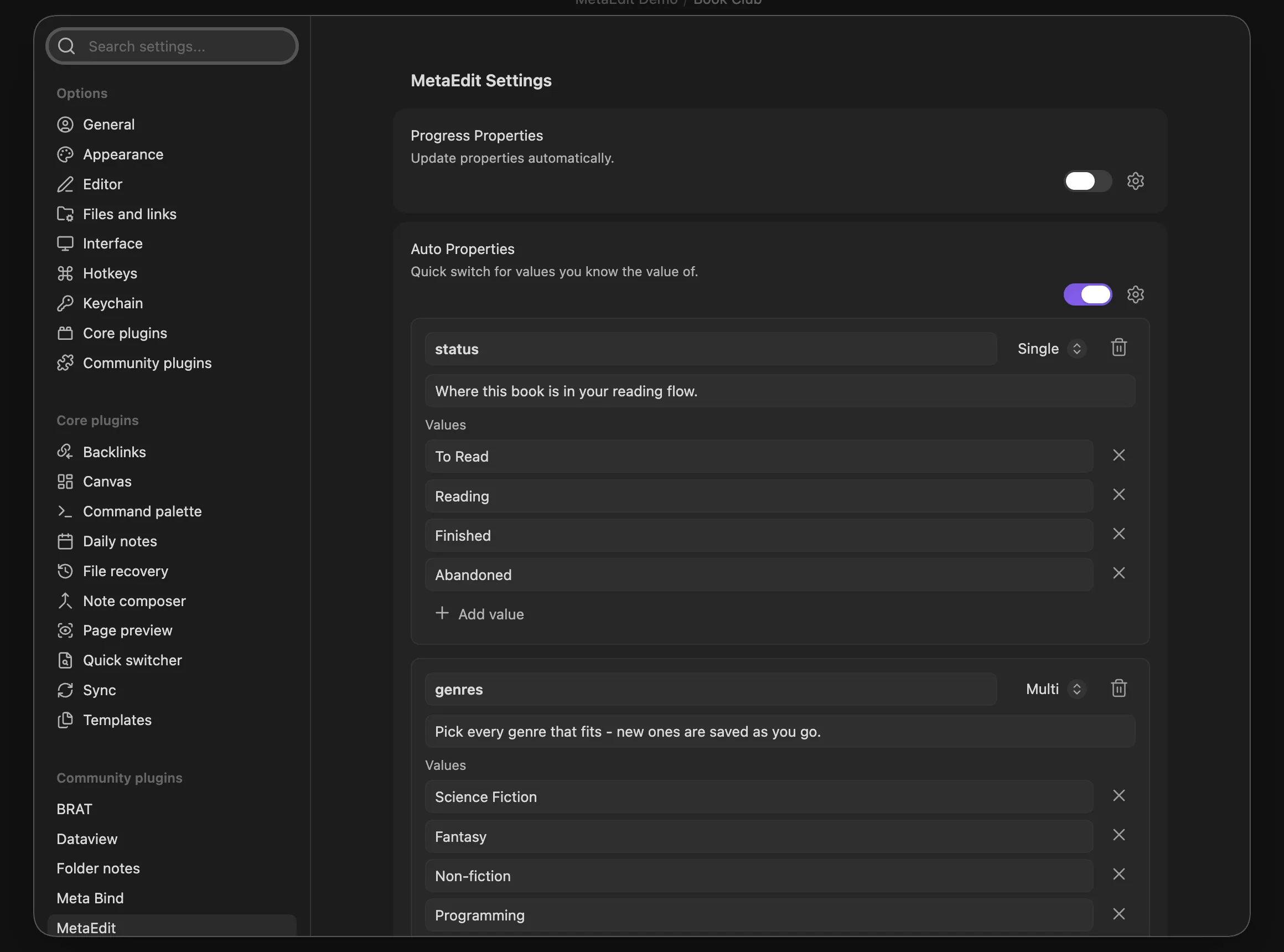
- Enable the “Auto Properties” toggle.
- Click the row’s gear button to expand the management panel.
- Click “Add auto property”.
- Name it exactly after the property key. Matching is exact and case-sensitive, so
Statusdoes not matchstatus. - Pick “Single” or “Multi” from the type dropdown.
- Optionally fill in the description field (“Description (shown when you pick a value) - optional”). It appears in the value prompt, which makes it a good place for a one-line reminder of what the property means.
- Click “Add value” and fill in each choice.
Every change saves immediately; there is no save button. Remove a choice with its x button and a whole property with its trash button. There is no reordering: new properties and new values always append at the end.
Paste a whole list
Section titled “Paste a whole list”Instead of adding values one by one, paste a list into any value box:
- Text with line breaks splits on lines only, so
Doe, Janeon its own line stays one value. - Text without line breaks splits on commas.
- Tokens are trimmed, blanks are dropped, and duplicates of existing values are skipped.
Single vs Multi
Section titled “Single vs Multi”| Type | Value prompt | What is written |
|---|---|---|
| “Single” | Pick exactly one value | A scalar |
| “Multi” | Checkbox multi-select | A list |
The per-property type is authoritative in both directions and overrides the global “Edit Mode” setting: a Single Auto Property stays scalar even under “All Multi”, and a Multi one is a list even under “All Single”. Only Auto Properties saved before the type field existed (no type set) inherit Edit Mode. See Lists and multi-values.
Picking a value
Section titled “Picking a value”Single mode
Section titled “Single mode”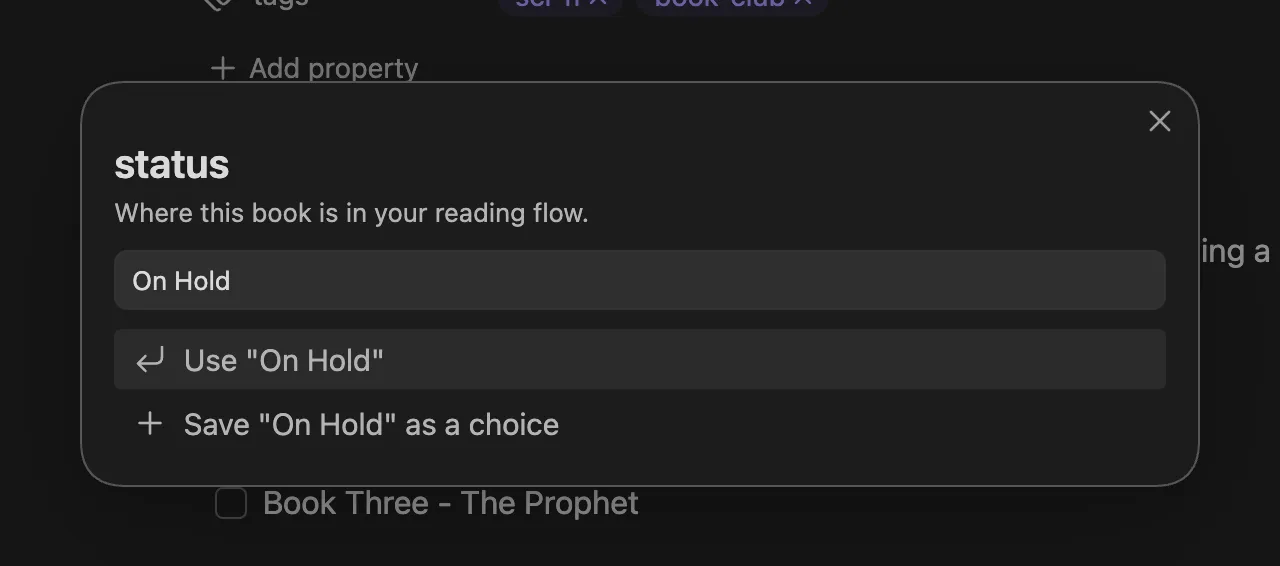
The prompt shows the property name, its description if you set one, and an input with the placeholder “Pick a value, or type a new one”. Typing filters the choices (case-insensitive substring). Use the arrow keys and Enter, or click, to pick.
When the typed text matches no existing choice, two extra rows appear at the bottom:
- ‘Use “On Hold”’ writes the value once without saving it.
- ‘Save “On Hold” as a choice’ appends it to the property’s choice list, then writes it.
This is how the list learns as you go: you never have to open settings to add a value you just used. With no choices defined at all, the prompt shows “No choices defined - type a value and press Enter.” Closing the prompt with Escape or a click outside cancels; nothing is written.
Multi mode
Section titled “Multi mode”
The input placeholder is “Type a value and press Enter to add it”. The checkbox list shows the property’s current values first, pre-checked and in their existing order (current values stay listed even when they are not defined choices), followed by any defined choices not yet set. Values that are not in your defined choice list carry a small “new” badge.
- Press Enter in the input to add the typed text as a new checked option.
- Uncheck a current value to remove it from the result.
- When at least one checked value is new, an extra checkbox appears: “Also add new values to this property’s choice list”. Tick it to save those values as choices when you confirm.
- Click “Confirm” to write the checked values, in listed order, as a list. Confirming with nothing checked writes an empty list.
Closing the prompt without clicking “Confirm” cancels; nothing is written.
Where Auto Properties trigger
Section titled “Where Auto Properties trigger”An Auto Property activates in four places, always gated on the master toggle being on and the key name matching exactly:
- Editing an existing property. Open the property picker (run “MetaEdit: Run” or right-click a note and choose “Edit Meta”) and select a matching property. Auto Properties sit first in MetaEdit’s precedence: they win over the native property widget, the list editor, and the plain text prompt. In Multi mode the property’s current values come pre-checked; in Single mode the prompt starts empty and simply lists the defined choices. See Edit properties.
- “New Dataview field”. After you name the field, the value step becomes the Auto Property prompt instead of the “Enter a property value” prompt.
- “New YAML property”. In the “New property” modal, settling on a matching key hides the type pill and value widget and shows the note: ‘“status” uses an Auto Property – press ⌘/Ctrl+↵ to choose its value.’ Committing the key closes the modal and opens the Auto Property prompt. See Create properties.
- Nested body tags. When you use “Edit last segment” on a nested tag such as
#area/health, an Auto Property named after the parent path including the leading#(name it#area) supplies the new last segment. See Edit tags.
Cancelling the prompt at any of these points writes nothing.
What gets written
Section titled “What gets written”| Property kind | Single result | Multi result |
|---|---|---|
| YAML frontmatter | Scalar string | Real YAML list |
| Inline Dataview field | Scalar string | Values joined with “, “ |
| Nested tag last segment | The new segment | A single checked value only; checking more is refused |
---status: Readinggenres: - Sci-Fi - Classics---The same Multi result on an inline field is written as genres:: Sci-Fi, Classics. A Single Auto Property keeps its value scalar even when “Edit Mode” is set to “All Multi”.
A Multi Auto Property on a nested tag is effectively single-select: checking more than one value produces a comma-joined result that fails tag validation, so MetaEdit refuses the write with the invalid-tag-name notice. Checking nothing cancels silently. See edit tags.
Fine print
Section titled “Fine print”- Name matching is exact and case-sensitive. If two Auto Properties share a name, the first one in the list wins.
- The master toggle also gates the public API:
autoprop()resolvesnullwhile Auto Properties are disabled. See the Auto Properties API. - If saving a newly typed choice fails, the value is still written to your note; MetaEdit shows a notice (“MetaEdit could not save the Auto Property choice: …”) so the choice does not silently vanish.
- Bulk edit ignores Auto Properties entirely: the typed value is written as-is across the batch.
Related
Section titled “Related”- Edit properties - the full editing precedence, from Auto Properties down to the plain prompt
- Create properties - the “New YAML property” and “New Dataview field” flows
- Settings reference - every Auto Properties option in one table