
One-click task dashboard with Dataview and Buttons
Build a dashboard note that lists every open task in your vault and completes any of them with one click, powered by MetaEdit’s update() API. Then layer Progress Properties on your project notes so task counts maintain themselves.
Prerequisites
Section titled “Prerequisites”- MetaEdit 1.9.0 or later. The plugin requires Obsidian 1.12.7+ and works on desktop and mobile.
- The Dataview community plugin with “Enable JavaScript queries” turned on in its settings (the dashboard is a
dataviewjsblock). - The Buttons community plugin for the first dashboard variant. The second variant uses a plain HTML button and needs no extra plugin.
- Optionally Templater, if you want new task notes to prompt for their metadata.
Step 1: shape the task notes
Section titled “Step 1: shape the task notes”Each task is its own note, tagged #tasks, with inline Dataview fields in the body:
#tasks
Status:: To DoProject:: [[Website relaunch]]Due Date:: 2026-07-15
- [ ] Draft the launch copy- [ ] Review with the team
Two things matter about this shape:
- Seed
Status::with a value. The API’supdate()only updates properties that already exist - on a note without aStatusfield it resolves silently and writes nothing. - Dataview normalizes inline field names for queries:
Status::ist.status,Due Date::ist["due-date"].
You can create these by hand, or use a Templater template that prompts for the status as the note is created. The classic “New Task” template lives in API examples, and the prompting pattern is walked through in Prompt for metadata in Templater templates.
Step 2: the dashboard, Buttons variant
Section titled “Step 2: the dashboard, Buttons variant”Create a Task dashboard.md note containing this dataviewjs block:
const {update} = this.app.plugins.plugins["metaedit"].apiconst {createButton} = app.plugins.plugins["buttons"]
dv.table(["Name", "Status", "Project", "Due Date", ""], dv.pages("#tasks")    .sort(t => t["due-date"], 'desc')    .where(t => t.status != "Completed")    .map(t => [t.file.link, t.status, t.project, t["due-date"],    createButton({app, el: this.container, args: {name: "Done!"}, clickOverride: {click: update, params: ['Status', 'Completed', t.file.path]}})])    )
Every row of the table gets a “Done!” button. Clicking it calls update("Status", "Completed", t.file.path), which rewrites the value of every Status:: field in that task note. On the next Dataview refresh the .where() clause drops the row, so the dashboard only ever shows open work.
The API object is available at app.plugins.plugins["metaedit"].api whenever MetaEdit is enabled; see the API overview.
Step 3: the dashboard, plain HTML variant
Section titled “Step 3: the dashboard, plain HTML variant”If you would rather not install Buttons, build the button yourself:
const {update} = this.app.plugins.plugins["metaedit"].api;const buttonMaker = (pn, pv, fpath) => { const btn = this.container.createEl('button', {"text": "Done!"}); const file = this.app.vault.getAbstractFileByPath(fpath) btn.addEventListener('click', async (evt) => { evt.preventDefault(); await update(pn, pv, file); }); return btn;}dv.table(["Name", "Status", "Project", "Due Date", ""], dv.pages("#tasks") .sort(t => t["due-date"], 'desc') .where(t => t.status != "Completed") .map(t => [t.file.link, t.status, t.project, t["due-date"], buttonMaker('Status', 'Completed', t.file.path)]) )Same behavior, no extra plugin: a click awaits update() against the task’s file.
Why update() and not something else
Section titled “Why update() and not something else”update(propertyName, propertyValue, file) is the right call for a status flip:
- It replaces the value of every inline field named
Statusin the note, in place, leaving the rest of the line and all other content untouched. A status is one piece of state, so replace-all is exactly what you want. - It never creates anything. A task note missing the field is silently skipped rather than polluted - which is why the template seeds
Status::up front. - Rapid clicks are safe: MetaEdit serializes all of its writes to a given file, so two button presses cannot race each other. See Write safety.
appendDataviewField() would be wrong here: it adds a new Status:: ... line and leaves the old one, so Dataview would then read Status as a list of two values and the != "Completed" filter would misbehave. Reach for appendDataviewField() when you want to accumulate instances of a field (log entries, a growing wishlist), not replace state. Both methods are documented in Properties API.
Step 4: automatic task counts on project notes
Section titled “Step 4: automatic task counts on project notes”Each Project:: field links to a project note. Give those notes live task counts with Progress Properties:
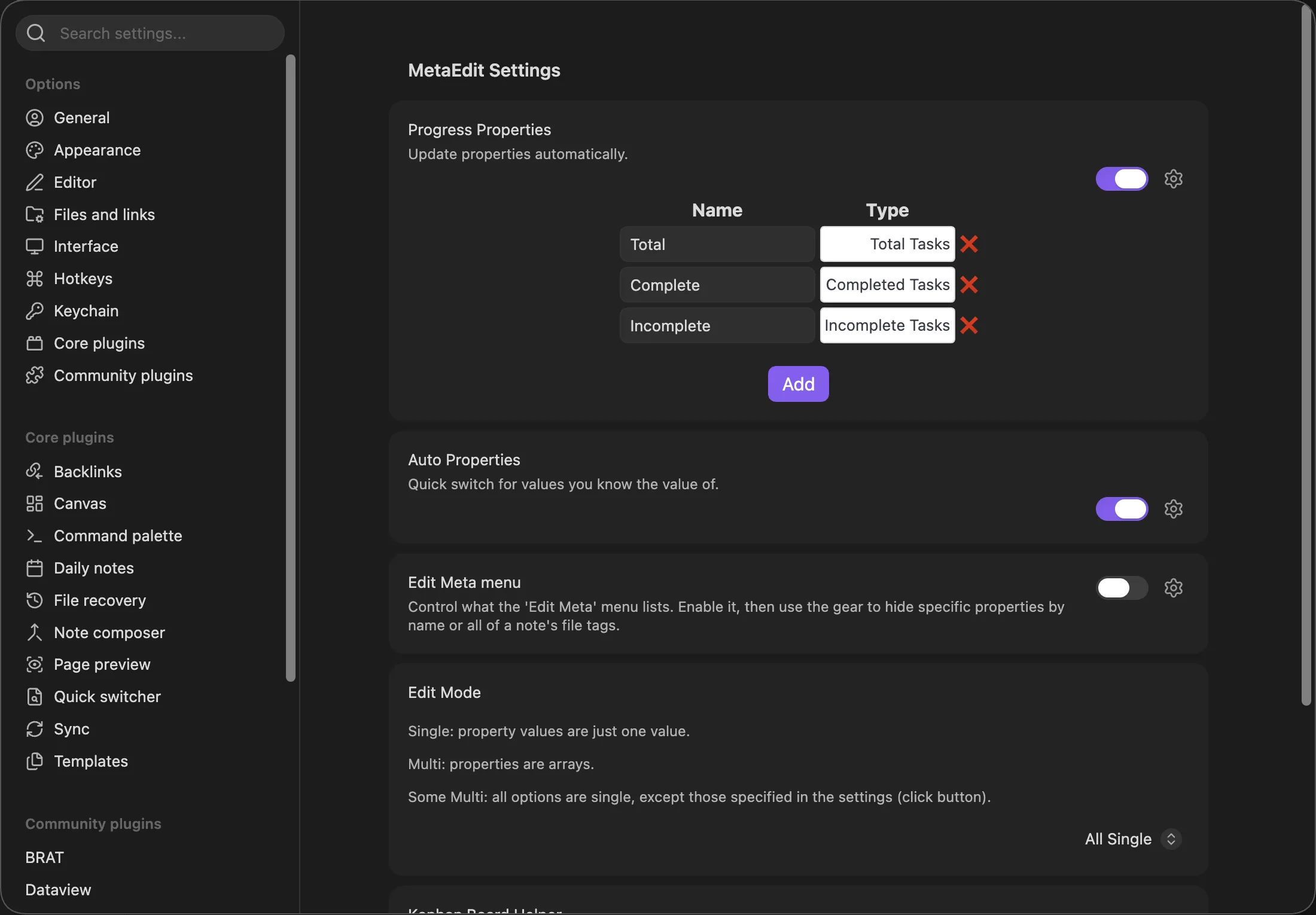
- Open Settings, then MetaEdit, and turn on the “Progress Properties” toggle (description: “Update properties automatically.”).
- Click the row’s extra button to expand the configuration table and click “Add” three times. Name the rows
Total,Complete, andIncomplete, with the types “Total Tasks”, “Completed Tasks”, and “Incomplete Tasks” respectively.
- Seed the three properties in each project note yourself - Progress Properties updates existing properties but never creates them:
---Total: 0Complete: 0Incomplete: 0---
# Website relaunch
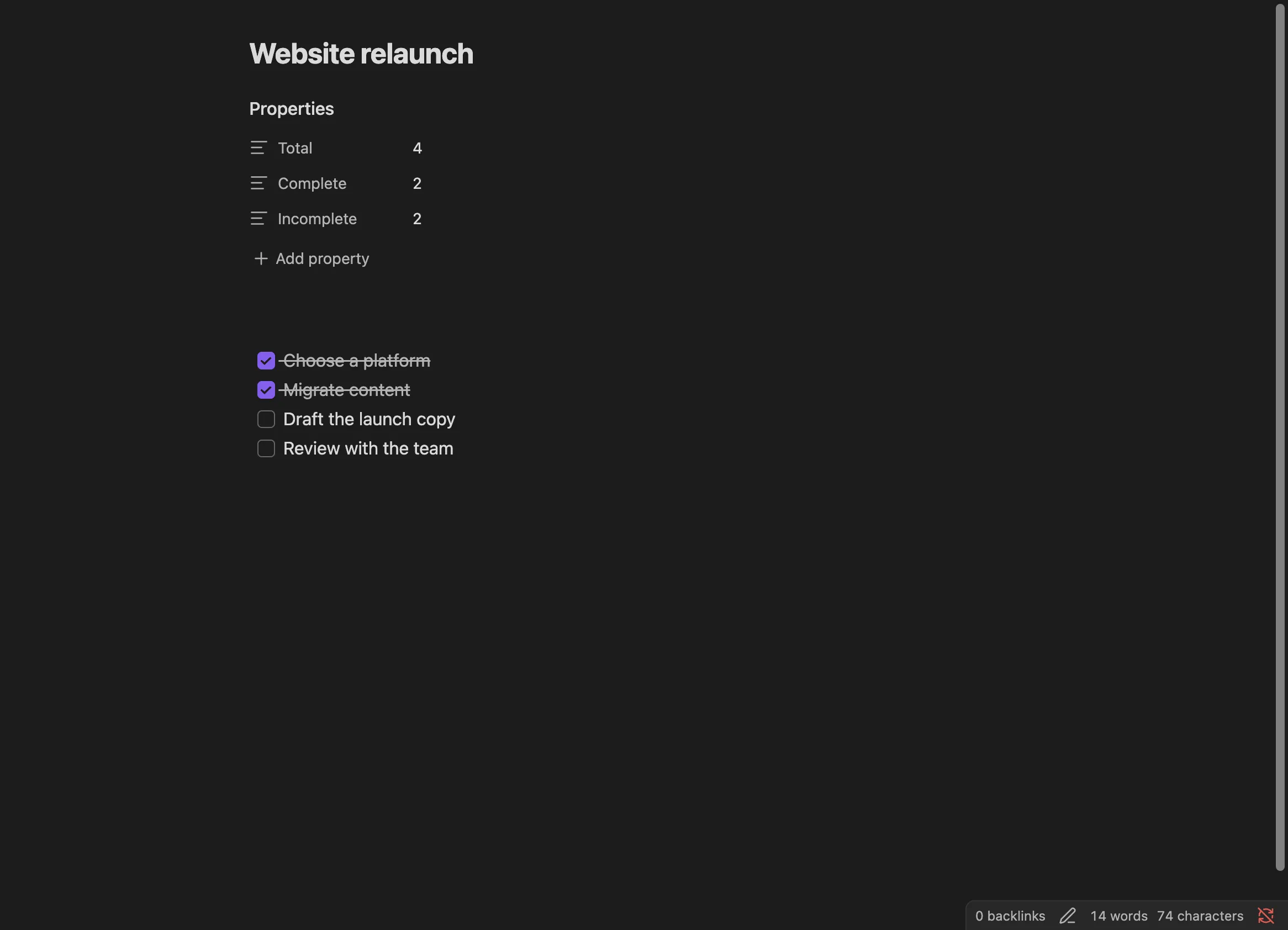
- [x] Choose a platform- [x] Migrate content- [ ] Draft the launch copy- [ ] Review with the team
About 5 seconds after your last edit to the note, MetaEdit rewrites the counts - here 4, 2, and 2:
The full behavior, including counting rules and troubleshooting, is in the Progress Properties guide.
Going further
Section titled “Going further”- Drive project status from a Kanban board instead of buttons: Kanban-driven project status.
- Prompt for
StatusandProjectwhen a task note is created: Prompt for metadata in Templater templates. - The complete method reference: Properties API.