
Quick start: your first edits
In five minutes you’ll edit an existing property, create a new one, and know every way to reach MetaEdit. All you need is the plugin installed and a note with some metadata - the examples below use book notes with properties like status, started, rating, and a couple of tags, but any note works.
1. Run MetaEdit on a note
Section titled “1. Run MetaEdit on a note”Open a note, then open the command palette (⌘/Ctrl+P) and run MetaEdit: Run.
2. Meet the property picker
Section titled “2. Meet the property picker”The command opens the property picker, MetaEdit’s central menu:
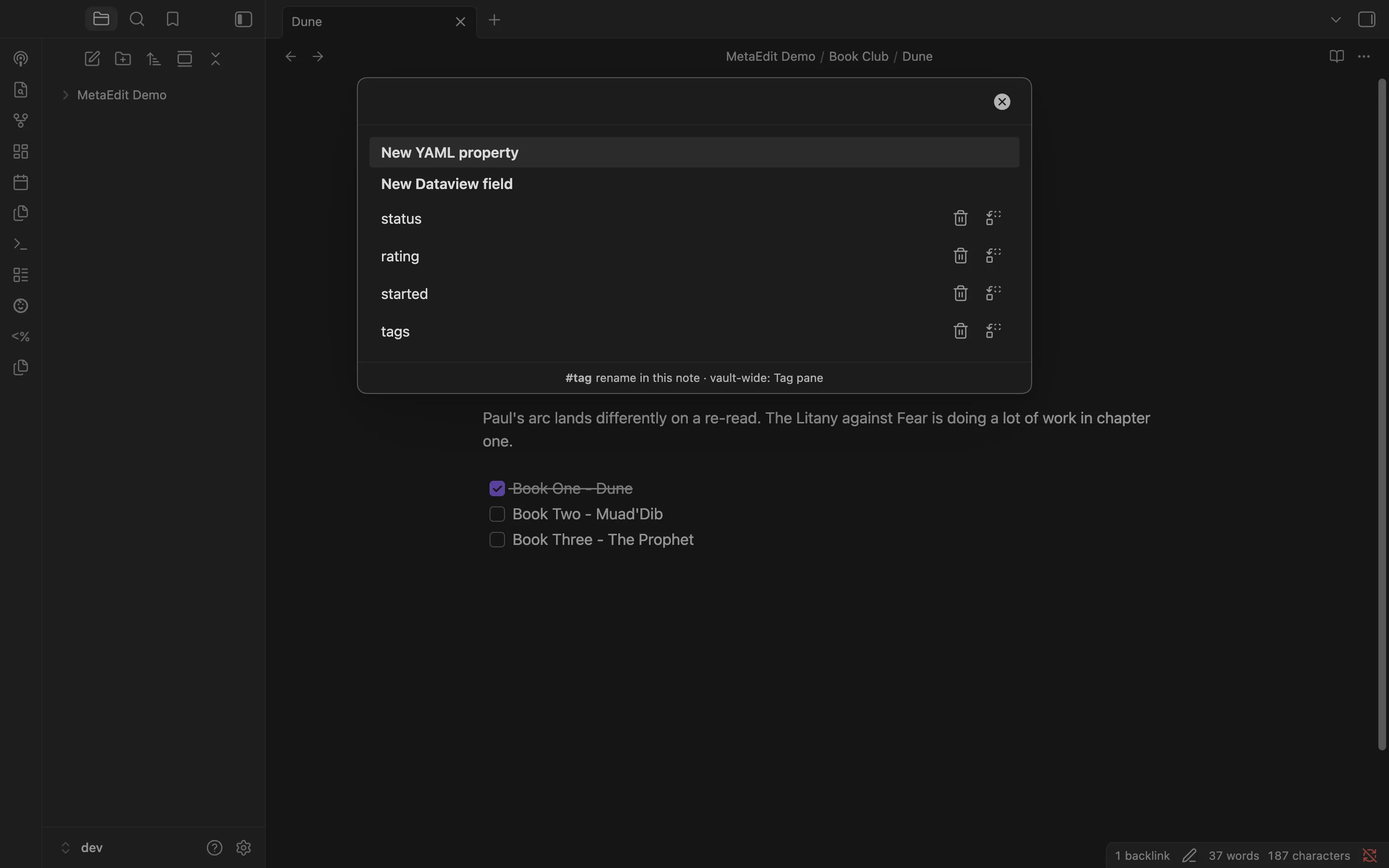
From top to bottom:
- Two bold action rows: New YAML property and New Dataview field.
- Every editable piece of the note’s metadata, in the order MetaEdit reads it: body
#tags, YAML frontmatter properties, then inline Dataview fields (key:: value). - On property rows, two action icons with hover tooltips: “Delete property” and “Transform to YAML ⇄ Dataview”. More on those in Delete and transform properties.
- A footer hint about tags: “#tag - rename in this note · vault-wide: Tag pane”. MetaEdit edits tags inside this note; vault-wide renames belong to Obsidian’s Tag pane.
It’s a fuzzy search: type to filter, use the arrow keys to move, press Enter to pick, Esc to close.
3. Edit a property
Section titled “3. Edit a property”Pick the started property. Because started is a date, MetaEdit opens an “Edit started” modal containing Obsidian’s own date picker - the same widget the Properties panel uses:
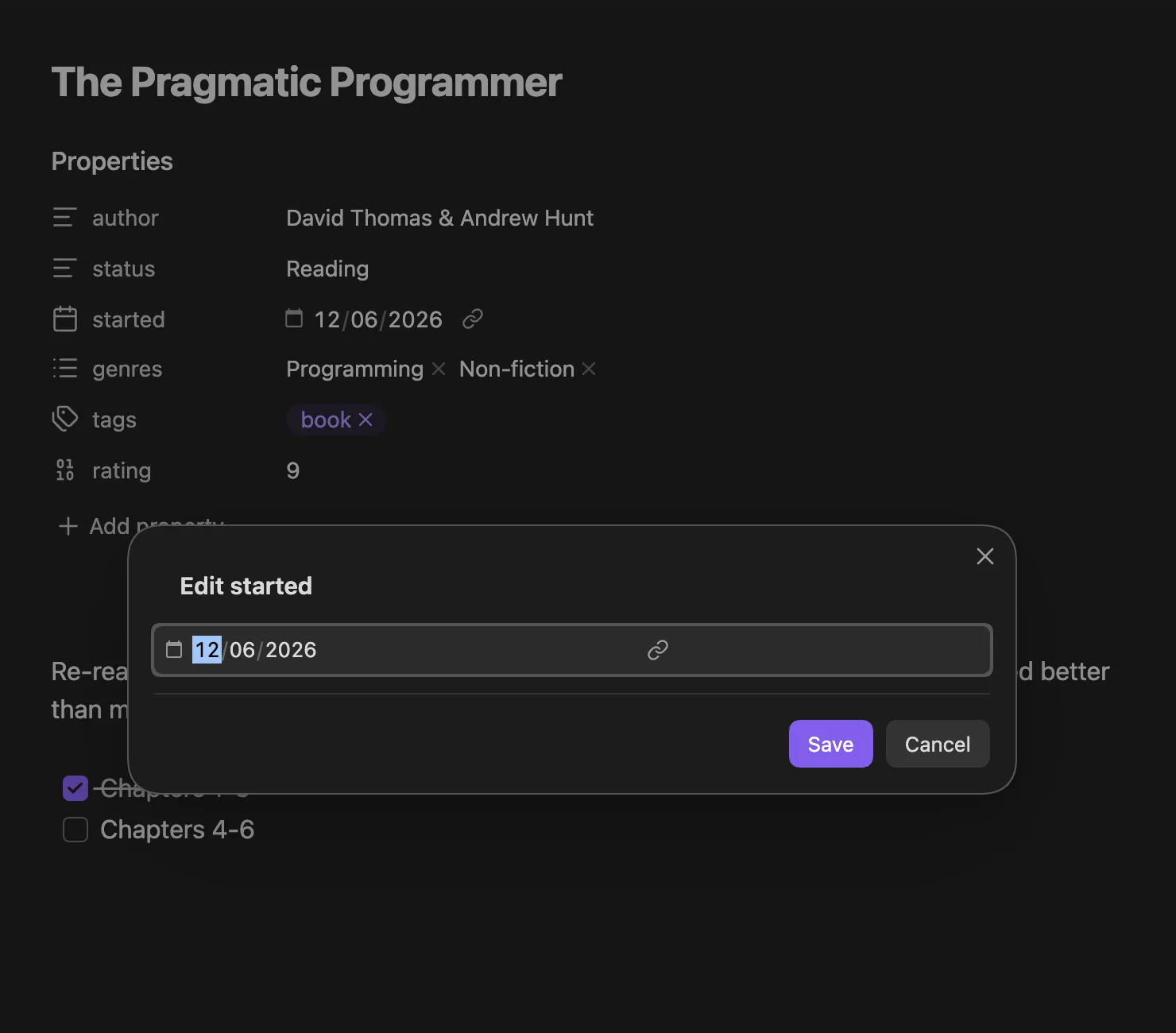
Pick a date and select Save. The value is written to the note’s frontmatter as a real date, not a retyped string. Cancel closes without touching the file, and saving an unchanged value writes nothing at all.
Every property type gets its matching widget: a number field for rating, chips for lists, a checkbox for booleans. See Edit properties with native widgets for the full picture, including what happens for Auto Properties and inline fields.
4. Create a property
Section titled “4. Create a property”Run MetaEdit: Run again and pick New YAML property. A single “New property” modal opens, and it’s type-aware:

- The key input autocompletes from every property name in your vault.
- The value widget follows the type: type a key your vault already knows, like
rating, and the row switches to the number widget on its own. ⌘/Ctrl+Yopens the type menu;⌘/Ctrl+↵adds the property.
That’s the short version - Create new properties covers type inference, the type menu, and the New Dataview field row for inline fields.
5. Or start from a right-click
Section titled “5. Or start from a right-click”You don’t need the note open. Right-click any .md file in the file explorer, or any internal link in a note, and choose Edit Meta:
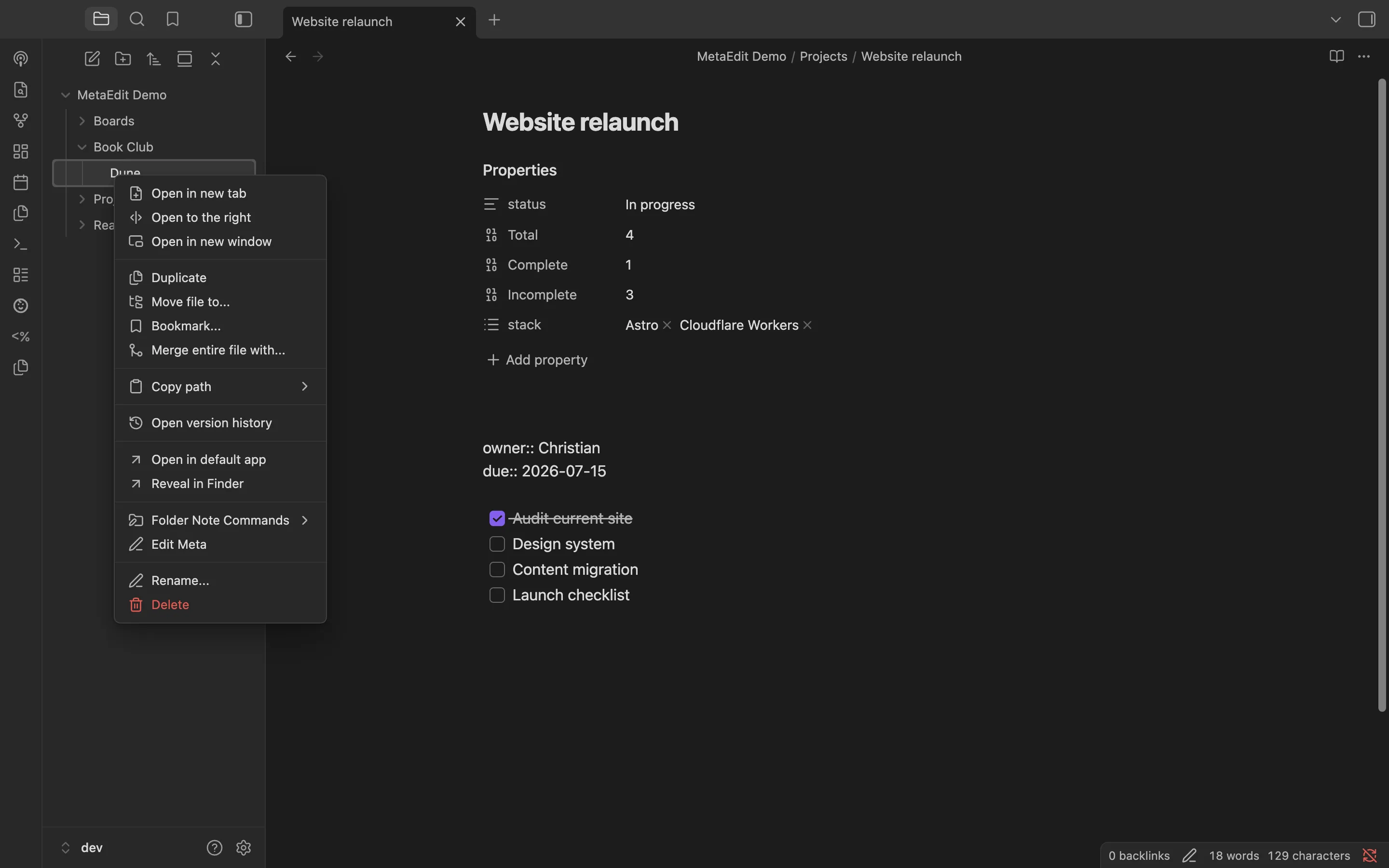
It opens the same property picker, targeted at that file. Folders and multi-selections get bulk-edit items instead - see Bulk edit metadata across notes.
Where to next
Section titled “Where to next”- How metadata works in Obsidian and what MetaEdit can (and can’t) edit for grounding.
- Edit properties with native widgets and work with lists for everyday editing.
- Auto Properties to stop retyping the same values.
- Commands and menus for the complete list of entry points.